Monday, 3 February 2020

Editing Technique Assignments


1: 
    This is a multi camera view when editing your video, this allows you to see an array of shots that are in order to match the master audio. You get this by first creating a multi master and then selecting the blue icon to make it dual screened. When starting with an empty timeline, by playing the video you can easily selected your desired shot as it comes up in the master audio. 
2:
   Audio markers are used to easily identify when there should be a change of shot without having to be aware of the audio coming up next. By using audio markers it can create a more professional finish with the use of synchronous shots to audio.
3:
    If there is a shot that you want to cut that has already been placed onto the timeline you can click the razor icon, which is highlighted blue, you would then click on the shot where you wish to cut it. This shortens your shot by splitting it into two, making it easier than deleting the whole shot and replacing the in and out points from the bins.
4:
   When cutting shots on the timeline you will need to move others in order to properly arrange your video. By using the forward tool it selects and moves all shots after your mouse as far as you pull it, making it easy to place extra shots.
5:
   Alternatively, you could use the ripple edit tool. This combines both the arrangement of the shots and shortening/lengthening the shots. Start by selecting the ripple tool icon in the toolbox and then go to the chosen end of the short you want to change. Find the edge of the shot, which will have a yellow outline, and pull in the direction you want to edit the shot. This method not only changes the length of the shots it also adjusts the entire timeline in order to stay in time. 
6:
   The colour panel gives you the ability to do many different things to your shots. When you select a shot you can add a wash by selecting different tones to the shot. It allows you to use preset washes such as sepia or to create your own.
7:
   To change a particular area of your shot rather than the entire thing you can use the eyedropper tool on one colour, this selects only areas in the shot with this colour making it easy to change into your desired colour.
8:
   Once you have the area selected, blur the outline to create a natural look in the shot, in order to check you have the whole area selected click on the edited selection box and then the 'tilda' key to view it in full screen.
9:
   The pen tool in the tool box is very helpful one, allowing you to change the opacity of the shot from any point. You do this by selecting the white line in the middle of the shot on the timeline moving it down to lower the opacity and up to restore it. The pen tool is also helpful to create a fade in or out. This can be done by placing two markers on the white line and then dragging one of them up or down.
10:
     To create this effect of changing a shot colour whilst also layering them on top of each other you need to use the above skills and also be aware of how to use the timeline. When your shot has been edited in the way you need to be aware of the timeline, with the timeline automatically playing the shot on the highest track over one on a lower one. This means that when adding a shot on a higher track you need to lower the opacity to see both.

Thursday, 7 November 2019

The Continuity System Of Editing


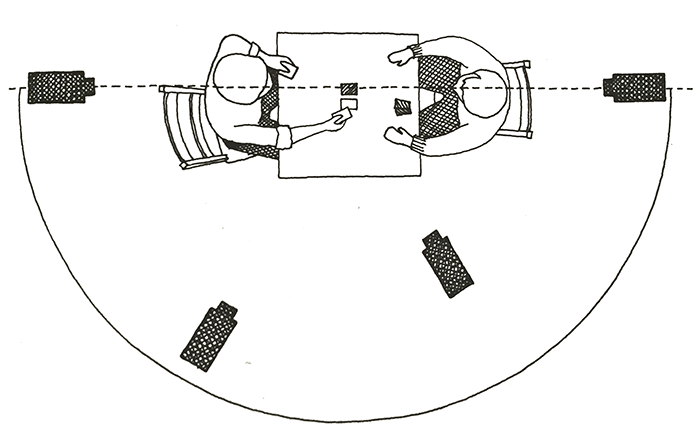
The continuity system of editing is a set of rules established in order to make sure that the audience remains aware of everything happening in the shot without any confusion. The five main editing techniques used are the; 180 degrees rule, shot/reverse shot, establishing and reestablishing shot, eye line match shot and the match on action. 

-The 180 degrees rule is an invisible line that you should not cross when editing your shots, meaning that if you have one shot of two characters sitting at a desk you would not typically  cut to a shot from the other side as this would be considered disorientating to the audience.
Image result for 180 degrees rule definition

- Shot/reverse shot is a technique used primarily during conversation in film. This is when the shot will cut from facing on one thing, onto another and then often back to the original character or object. When shooting the first shot will be shot at an angle towards the first person/thing, the reverse of this shot is then shot from the opposite angle, maintaining on the same side to continue the 180 degree rule.


- An establishing shot typically uses a wide shot in order to establish the context and location of a scene in a film or TV show. In a film it can also establish the setting for the entire film, showing the audience relevant information needed throughout the film.


- The eyeline match cut uses the framing to enable the audience to see through the eyes of the character. This technique can bring the audience closer to the action showing emotion in more detail whilst also highlighting more important things in the scene, such as other characters and props with significance.

- Match cut on action plays a vital role in continuity in a piece of editing. Using a match cut on action ensures that the action remains continuous regardless that it is a different shot, this makes the action recognisable as one movement to the audience. Match cut on actions can also be used to trick the audience when used efficiently.


Tuesday, 15 October 2019

Analysis of my First Continuity Activity


The sequence begins with a straight cut to begin the short, Usually this would be a fade up but due to time restrictions my group forgot to change this. 

The first shot type is a long shot establishing the location with the car park in the background which plays a key part in the short. We then have a match on action to shot 2 in order to keep the continuity of our main character walking from inside the corridor to outside in the car park. 

Shot 2 is an extreme long shot, panning towards the car from the door leading out of the corridor to the car door. This shot ends with the character reaching out for his car door, with the match on action being the reaching and grabbing of the car of shot 3.

Shot 3 is close up of the door, filmed at a slightly high angle to give variation of shot angles as both shots beforehand were filmed straight on. It uses yet another match on action into shot for of the car door opening and closing as our character enters the car in shot 4.

Shot 4 is an extremely short one inside of the car breaking the 180° rule, although due to the nature of the shot being filmed at a high angle it is not noticeably confusing to the audience. By using a straight cut to the shot 5 as soon as he sits on the seat we are able to create the illusion that the entire car has just disappeared. 

By using a long shot in shot 5 you are able to see that the car is no longer there, instead only a plastic chair. If I were to retake this shot I would be more precise about the movement of the arms as in the car shot his arms were by his side whereas in the next shot they are up as if he had his hands on the steering wheel. At the end of shot 5 the chair is spinning so in order to keep the continuity we straight cut a match of action to the chair spinning in the same direction in shot 6.

In shot 6 we use a medium long shot to start exploring the confusion felt in more detail, this is then cut to a reaction shot at a slightly low angle. Both shots 7 and 8 are simple medium long shots of our main character going through a door using matches on action of the door opening and closing in order to make it look continuous. 

At the end of shot 8 the character stops and looks towards the left of the shot connecting to the shot 9 with an eye line match looking at another person in the class. This shot is not entirely in focus but it is clear that this secondary character is looking towards the right, keeping continuity with the use of the rule of thirds. We then cut back to our final shot, shot 10.

Our final shot cuts back to our main character, with the shot again out of focus, with a medium close up. It is then straight cut halfway during his final word for comedic purposes fading into the end card.  

Friday, 11 October 2019

HATirical Comedy - Induction Continuity Project


Production Process 

We began our production process with brainstorming our idea, which was influenced by specific guidelines required for this project. Once we had a basic idea for our short we began filming. We experimented with both natural and artificial light to enhance the quality of the short, whilst also sticking to the shot requirements set by the task. During the filming we made sure to take multiple different shots for a scene to ensure the editing process can be as smooth as possible, whilst also giving multiple different options to use post - production. Filming as a whole was relatively successful with our shots all in focus and even.

Editing

The editing process for my group was a successful one, using everything we had learnt we started off by putting the clips together to make our base, not worrying about sound effects or music to begin with and then explored different transitions. To make our video more individual we chose not to use the default fonts available on Premier Pro, instead we downloaded a font and then edited it on Photoshop to transfer back into Premier. In terms of sound our video has no dialogue, only using background music and sound effects, this means that we are relying entirely on the footage and editing to push the narrative rather than the typical use of dialogue.  

Continuity

As a whole the continuity in our film is there with no major issues although there are a few moments of which we could've improved on. The most significant moment is in the first half where our main character opens the doors. In one shot the door closes but in the next it remains open, this is because we didn't realise until post-production, meaning that there was minimal we could do to change it. Another continuity error is in an outside shot where our secondary character goes from having their hood up, to it being down, to it being up again. This is another error we spotted post production. Although we never broke the continuity rules in terms of the 180 degree rule or any others.  

Conclusion

In conclusion our short was relatively successful with us all learning how to plan, film and edit a short video. This induction will allow me to expand any knowledge I have gained, letting me use it to the fullest in any actual coursework.


Tuesday, 24 September 2019

My First Premier Pro Editing Project


We started off this project learning how to use a camera in manual mode, going through the settings to make sure our camera was accurately set up for filming and learning about the exposure triangle. The exposure triangle consists of three components; ISO, aperture and shutter speed. ISO affects the light sensitivity, with a higher ISO giving a grainier look to your image and a lower ISO giving a cleaner image. Aperture affects the depth of field with it being determined by an opening letting in an amount of focused light through the lens. The smaller the aperture number the larger it's opened meaning it will let more light through than a larger f-stop. A smaller f-stop also gives a blurrier depth of field than a larger f-stop which makes the depth of field visible. Shutter speed is the speed in which the curtain opens then closes, when filming we keep this at 50.

Once we knew how to make sure our shots were properly exposed and established basic control of the camera and how a tripod is safely set up we began filming. We started with static shots and then started with moving shots, experimenting with depth of field and exposure both inside and out.
Finally we began the editing process. It began with us transferring our footage onto the computers and then moving that onto premier pro. Firstly we made three 'bins' inside our new file - these were: Footage, Audio and Titles - and transferred our footage into the footage bin. I then learnt how to begin basic editing techniques including how to access the transitions, fade in and out and add audio. When adding the audio we went over the importance of copyright and what kind of sounds can be used when creating your own film, finishing with adding a title and a rolling end credit.


The last thing we did was export our film looking through the different formats and then uploading it to YouTube.


Our finished product makes use of all the features needed to have a basic knowledge of using Premier Pro and a camera when in manual. We used various amounts of different shot types to experiment with depth of field. The most successful shot in my opinion is the first shot, focusing on the bars and having the background blurry whilst still being able to make out what is going on. The most unsuccessful shot was in the corridor, this is because it is extremely out of focus.


In order to improve next time I will remember to render the project before exporting to ensure that it is at its highest possible quality.